Call Control using Headsets
Using certain Jabra and Yealink headsets on the Cymbus desktop app, you can control your active calls and meetings directly from the headset controls instead of clicking the on-screen prompts. The LED status light on the headset reflects the app call status, such as whether you're busy or receiving an incoming call.
Supported call control functions include:
Answer or decline an incoming call
Mute and unmute
Volume control
Hold and resume the call
Call waiting (Hold and Accept / Decline the second call)
Swap between two calls
End the call
Leave the meeting
The following are also supported if it's available to your headset.
Moving a microphone boom arm
Docking/undocking a headset from a docking station
Note
Each headset has different buttons and actions. Refer to your headset documentation on how you use the headset buttons for call control.
Supported Headsets
Call control is supported when headsets are connected to the desktop computer via USB or Bluetooth. The following headsets have been tested but other Jabra and Yealink headsets might work with the desktop apps. This feature is designed to work without additional software, such as Jabra Direct or Yealink USB Connect, but it depends on the headset model.
Bluetooth Headsets: BH70 / BH74
DECT Wireless Headsets: WH62 / WH64 / WH66 / WH67
Wired Headsets: UH38 / UH42
Speakerphone: SP92 / SP96
Configure Yealink Headsets
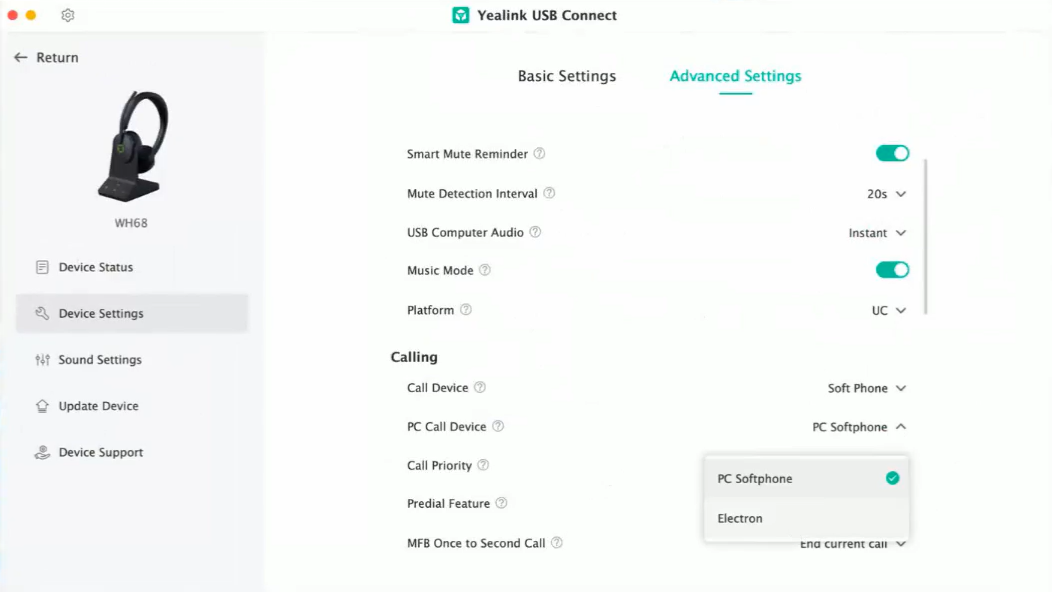
For dialing out or redialing using Yealink headsets, configure Yealink USB Connect as follows:
On your device, open Yealink USB Connect.
Go to Device Settings then select Advanced Settings.
Under the Calling section, set as follows:
For Call Device, choose Soft Phone.
For PC Call Device, choose PC Softphone.