Assign Phone Number to User
If there aren't any phone numbers on the account yet, refer to first.If you do not have access to this page or the number you're looking for is not there, contact your service provider for assistance.
Go to Account > Phone Numbers.
Locate the phone number you want to modify and select
 Edit destination on the right.
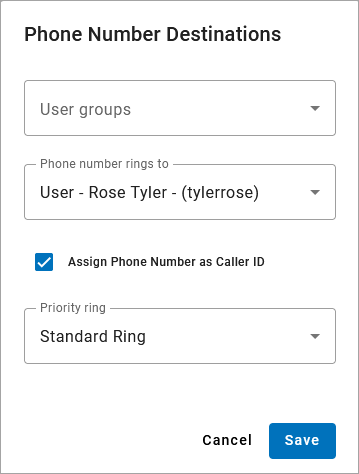
In the Phone Number Destinations popup, fill out the following:
User groups: Select a group to narrow the Phone Number Rings To options below to only those users (optional), or leave it blank to show all possible destinations.
Phone number rings to: Select the user who will be assigned to this number.
Assign Phone Number as Caller ID: Choose whether to assign this phone number as the user's caller ID. Leave it unchecked if a different number is or will be assigned as their caller ID.
Priority ring: Select a priority ring tone (optional).
Select [Save]. The phone number will be assigned to the user and can be viewed in their Calls tab.
Assign Multiple Numbers
To assign multiple phone numbers to a destination at one time, see Bulk Phone Number Management.