SSO Authentication
Single Sign-On (SSO) is an authentication method that allows users to access multiple applications using a single set of credentials. Once a user has signed in through their organization's Identity Provider (IdP), they can move seamlessly between connected systems without being prompted to log in again. This reduces friction and password fatigue for end users, while giving administrators the ability to enforce consistent security policies, such as multi-factor authentication (MFA), across all connected applications from a single place.
If you would like your employees to access the voice portal and UC app using the same single sign-on process they use for accessing other tools, you can set that up here, in the Authentication section of the account.
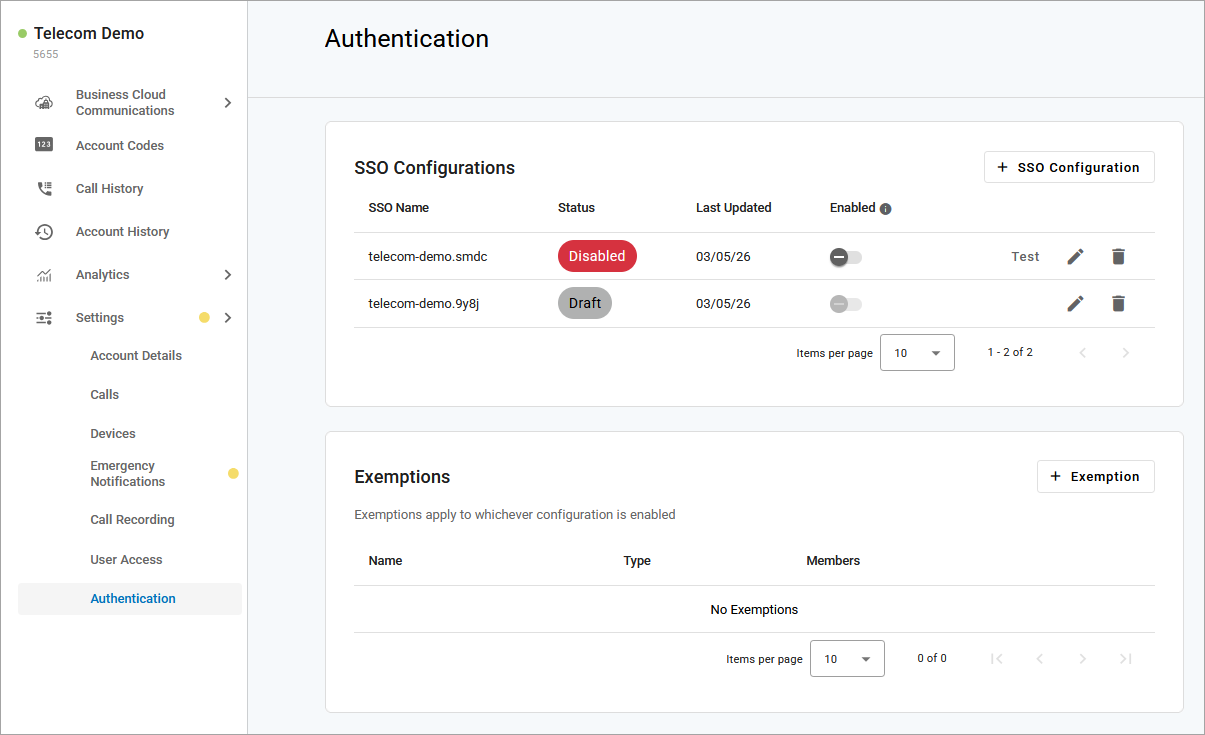 |
SSO Configurations
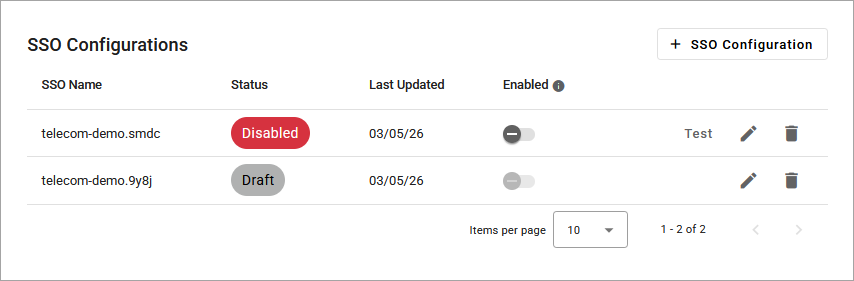
The SSO configurations section displays every SSO configuration set up on the partition. From here, you can create and manage your configurations, saving as many drafts as needed.
Keep in mind that only one SSO configuration can be enabled at a time. To switch to a different configuration, disable the current one and then enable the desired one.
Field | Description |
|---|---|
SSO Name | System-generated name for the configuration. This cannot be changed. |
Status | Will display the status of the SSO configuration, these include:
|
Last Updated | Date the configuration was last created, edited, enabled, or disabled. |
Enabled | Toggle on or off to manage which completed SSO is used by the account.
|
Test | Test the connection between the IdP and the SSO configuration. |
Edit | Modify your IdP information and the sign-in public key. |
Delete | Remove the configuration from the account.
|
Exemptions
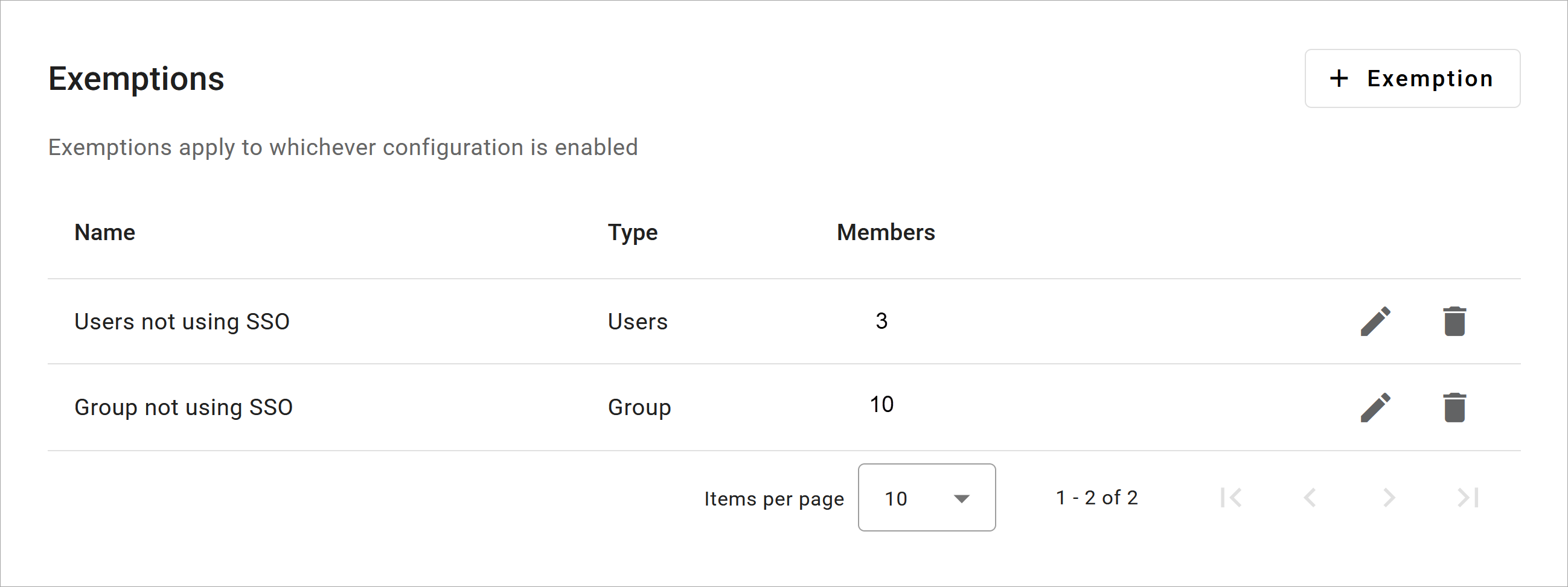
Use this section to exempt specific users or groups from using the enabled SSO on the account. Excluded users will fall back to Alianza's default login process, or can be configured with the partition's SSO instead. Contact Customer Service for details.
 |
Go to .
In the Exemptions section, click .
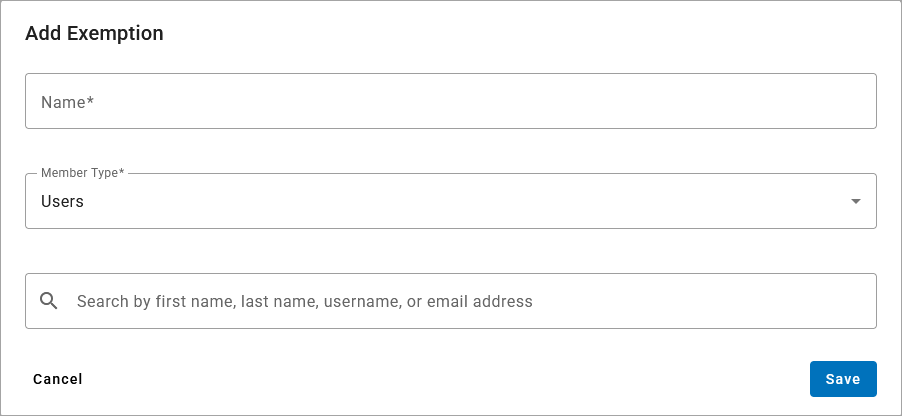
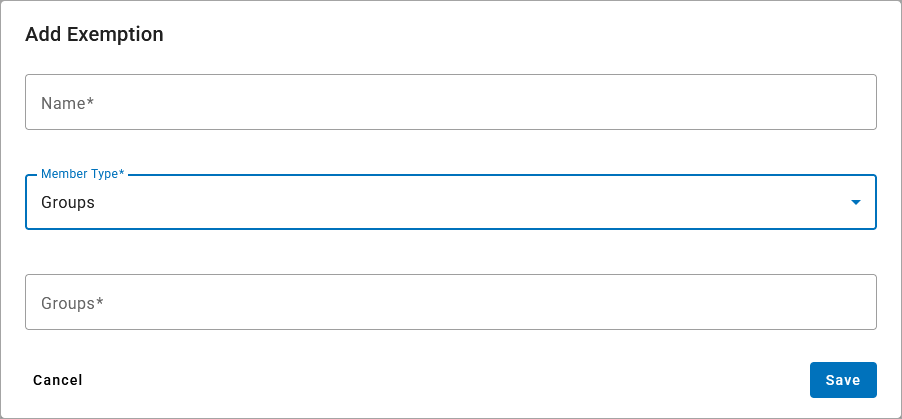
Enter a name to reference this list of exemptions.
Select if the exemption will apply to specific user(s) or group(s) of users.
Search for the user(s) or group(s) to be exempt from using the SSO configuration.
When complete, click .
Go to .
In the Exemptions section, click the
 trash icon next to the user or group list to be removed.
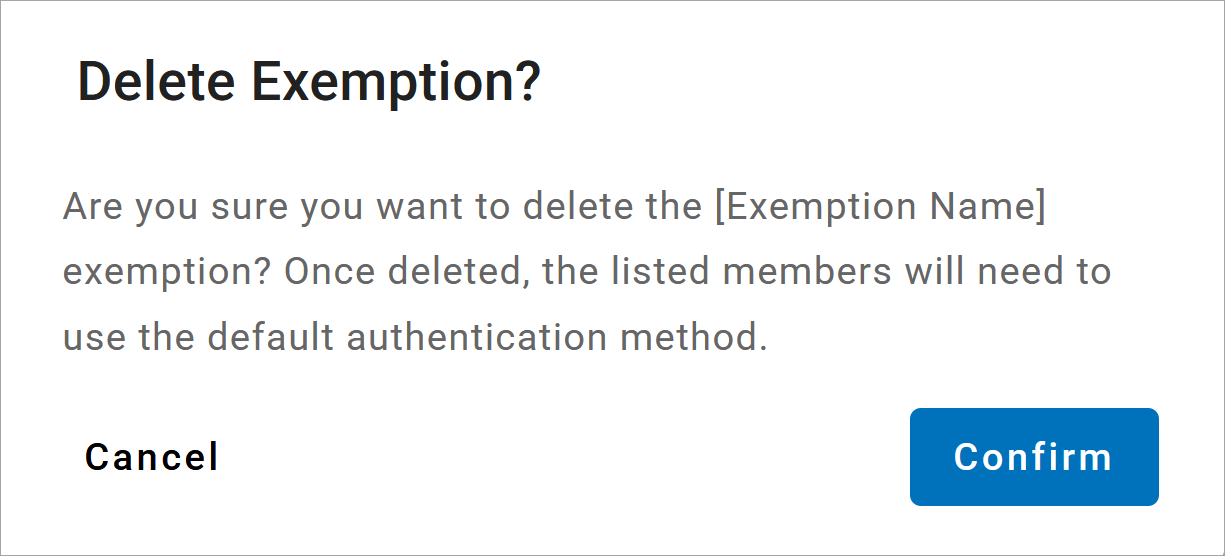
Click in the pop-up window to complete the deletion.