Manage a User's Voicemail
The following information is for Admin users only.
A voicemail box was assigned to each user with their voice service. In the user’s Voicemail tab, you can manage their voicemail greetings, messages, and message settings such as Forward Voicemail to Email and Voicemail Transcription.
Tip
Voicemail boxes can be managed at the user level (here) or in the Voicemail section of the portal. See Voicemail for more information about these settings.
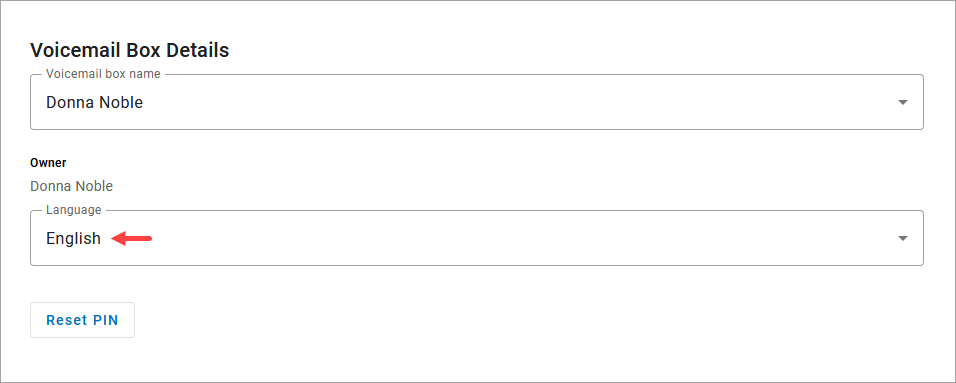
Voicemail Box Details
 |
Field | Description |
|---|---|
Voicemail Box Name | Enter or edit the name of the voicemail box. In the tab, you can choose which voicemail box to assign to a particular user. |
Owner | The name of the user(s) this voicemail box is assigned to. This is not an editable field. |
Language | The language used for the voicemail menu audio prompts and forwarded Voicemail to Email messages:
If this voicemail box is assigned to multiple users, changing this setting for one user will change it for the other users. This is separate from the Language setting in the user's Settings tab, which applies to the web portal UI, telephone user interface (TUI) audio prompts, and system-generated emails. Remember to set both. |
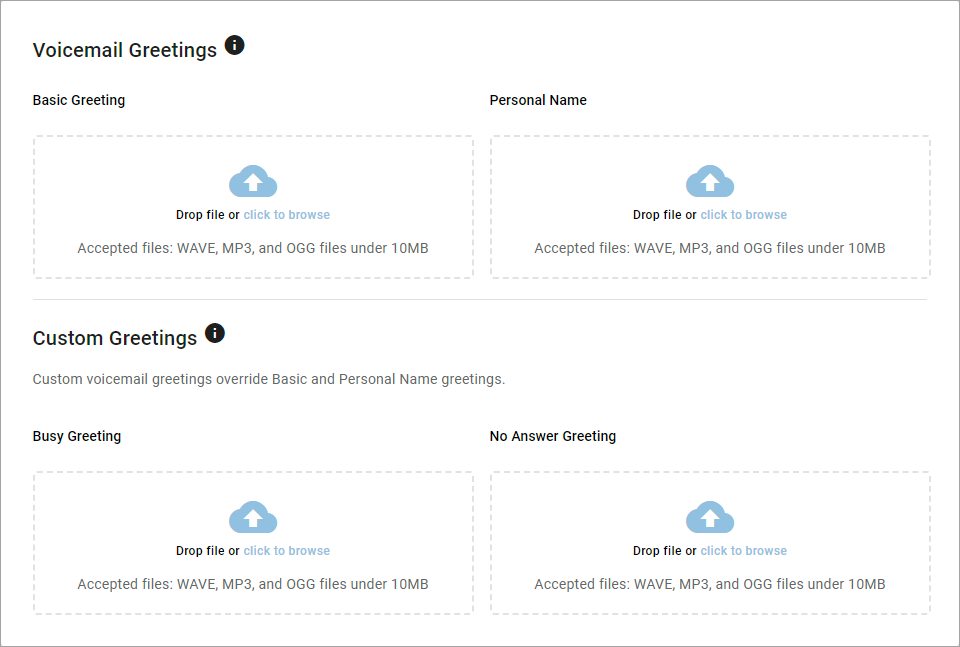
Voicemail Box Greetings
Upload and manage voicemail greetings (Basic, Busy, No Answer) and personal name recordings. Click the field to select a file from your computer, then click [Upload]. The upload will accept MP3, OGG, and WAV files that are less than 10MB.
Messages
Voicemail messages are stored in the voicemail box, which can be accessed here or by dialing in (see Voicemail Access). Messages can be sorted by Time/Date, Length, and Status (New or Saved).
Please note, as an Account Manager or Admin user, you can download only your own voicemail messages.
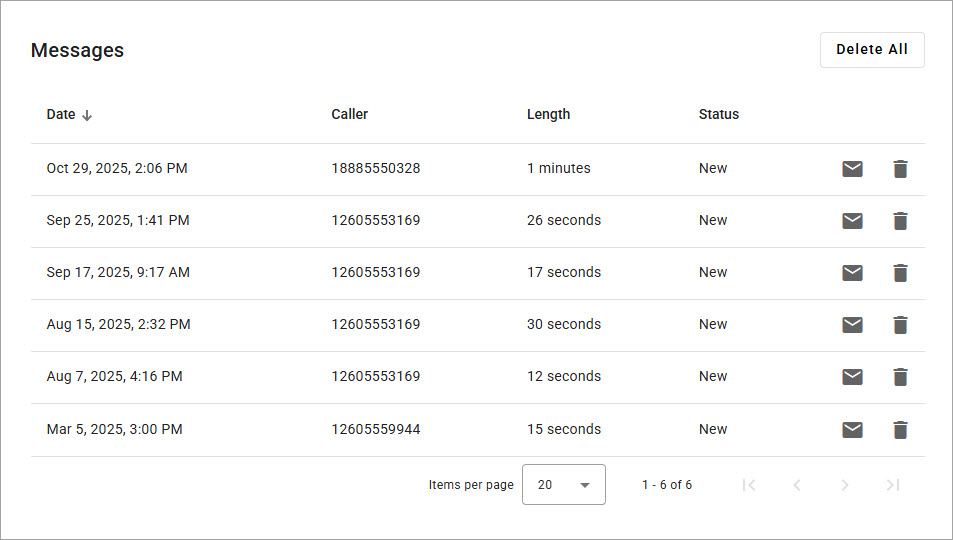 |
 Download. Save a copy of the message to your computer as an MP3 file.
  Save. Change the status of the message to Saved.
 Delete. Delete this message from the box. To delete all messages at once, click in the top right.
Message Waiting Indicator
The message waiting indicator (MWI) on your device notifies you when a new voicemail message waiting to be retrieved. When you’ve listened to, saved, or deleted the message, the MWI will turn off.
Storage Limit
Voicemail boxes do not have a storage space limit, and messages are stored indefinitely. Individual messages are limited to 5 minutes.
Message Settings
Forward Voicemail to Email
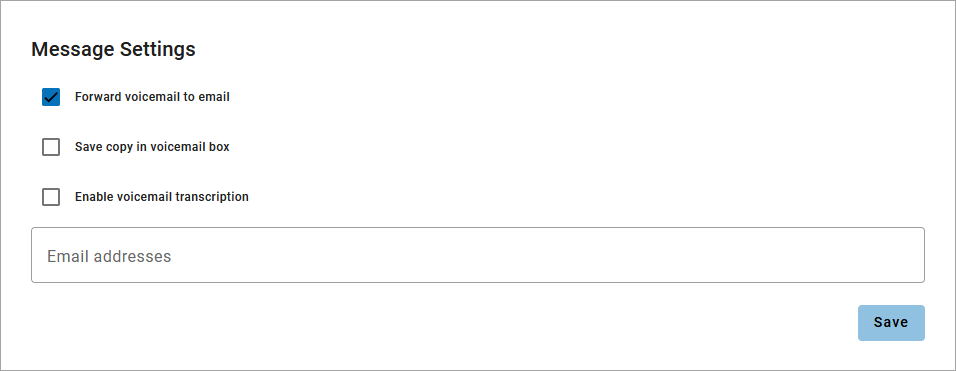
All voicemail boxes have the option to forward voicemail messages to one or more email addresses. When a message is left on the voicemail box, an email notification is sent to the specified email address(es) with the message recording attached as an MP3 file.
In the voicemail box, scroll down to .
Check the box for Forward voicemail to email.
Optionally, check the box for Save copy in voicemail box.
When checked, the message waiting indicator (MWI) on the user’s device will stay on until the user listens to or deletes the message from their device or the Voice Portal.
If unchecked, voicemail messages are removed from the voicemail box when forwarded to email.
Optionally, check the box for Enable voicemail transcription.
In the field below, enter one or more email addresses in the field below separated by commas.
Click [Save].
Example Email
 |
"From" Email Address
Forwarded voicemails are sent from noreply@cymbus.com. Please remember to whitelist this address so the emails can be delivered to your inbox.
Voicemail Transcription
Sometimes reading a voicemail message is easier than listening to it. Voicemail transcription, available only on Business Cloud Communications and , takes the audio from the voicemail message and converts it to text, which is then forwarded to one or more email addresses with or without the message attached as an MP3 file (depending on if you also have forwarding enabled).
With voicemail transcription, you can:
Get important messages when you can’t take a call.
Browse your voicemails in email, rather than listening and re-listening.
Keep searchable records of business voicemails.
Easily forward messages you’ve received.
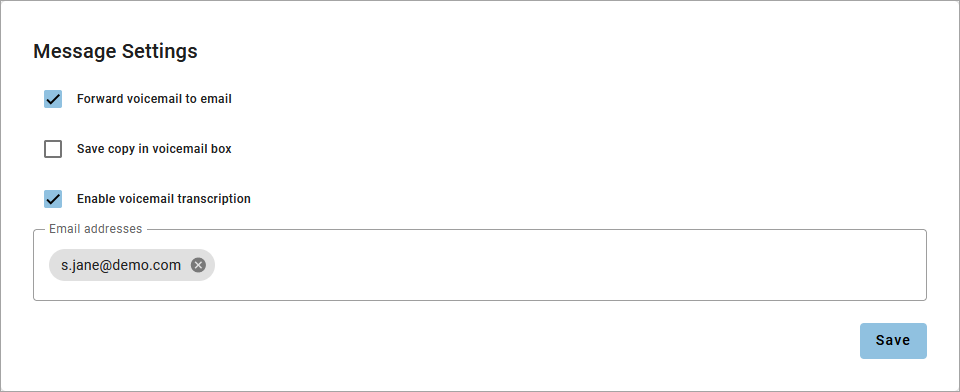
In the voicemail box, scroll down to .
Check the box for Enable Transcription.
Optionally, check the box for Forward Voicemail to Email to email an MP3 of the message and Keep a copy in voicemail box if you want to save a copy of the message in the voicemail box when it's forwarded.
In the field below, enter one or more email addresses in the field below separated by commas (required).
Click [Save].
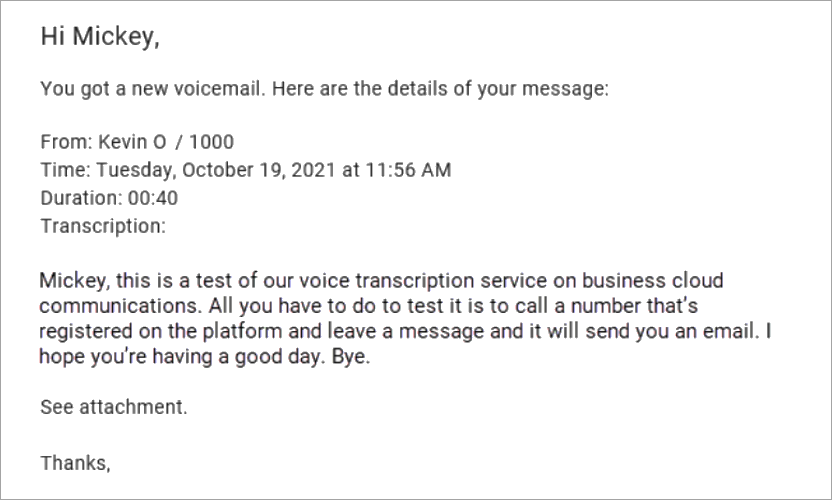
Voicemail messages will be transcribed and sent to the email address(es) indicated here. If Forward Voicemail to Email is also enabled, an MP3 of the message will be attached to the email.
Example Email
US English
Voicemails can only be transcribed from US English. If a message cannot be transcribed for any reason, such as poor audio quality, an email will still be sent with a message saying, "Message could not be transcribed."
HIPAA
Voicemail transcription is not HIPAA compliant. If you need to maintain HIPAA compliance, we recommend that you not enable transcription.