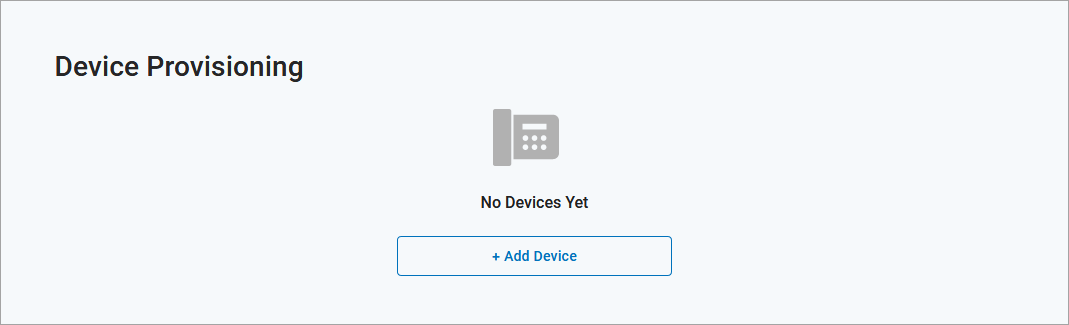
Device Provisioning
Now that you’ve added phone numbers and configured lines, you’re ready for Device Provisioning. Here, you will add a device and then assign lines to the physical ports on that device.
Add Device
Go to .
Click .
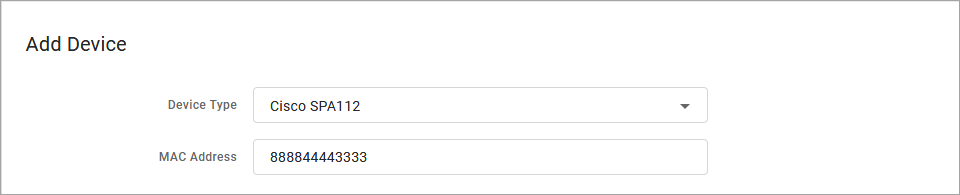
Choose your device type from the menu and then enter the device's MAC address (required).
Suggested Devices
All compatible device types (ATAs, cable modems, fiber devices, softphones, etc.) will be listed here. Because Business Lines supports provisioning devices that act as VoIP-to-analog gateways, you won't see any IP phones in the list. Select an ATA with one or more analog ports, such as the Cisco SPA112.
Device Ports
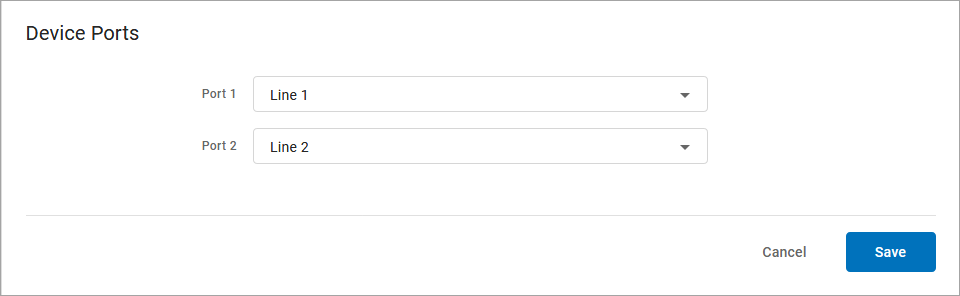
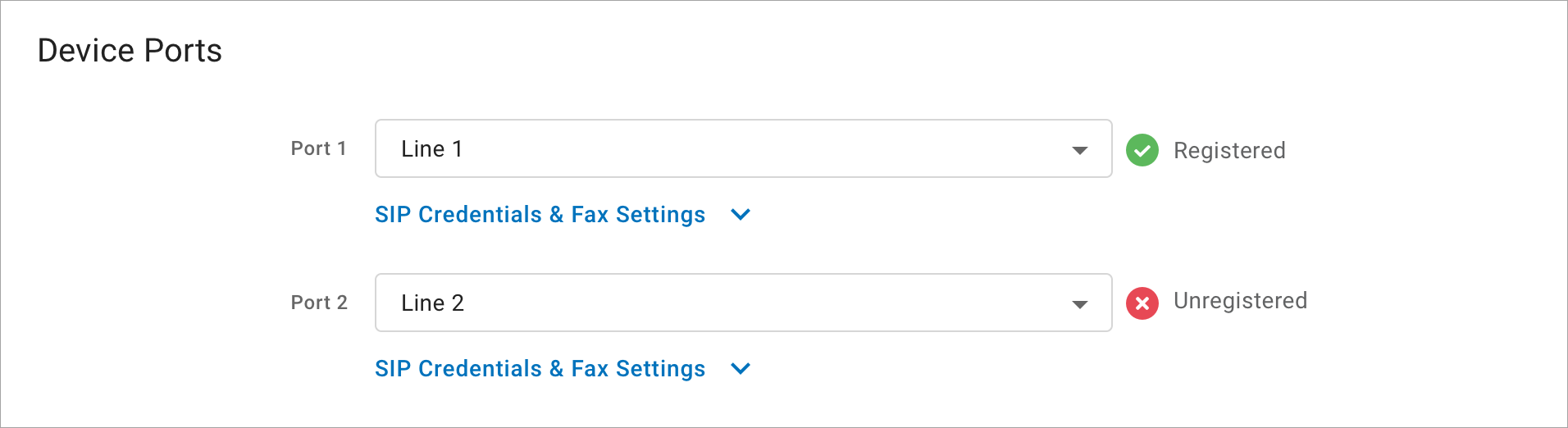
Next, you’ll set up how the device integrates with the business lines. Lines are assigned to physical ports on the device. You cannot assign a line to multiple ports.
In our example, the Cisco SPA112 device has two physical ports, so two ports are listed for the device here. Assign a line to each port as necessary, then click .
Hunt Group Devices
Any device line can be assigned to a hunt group; there are no hunt group restrictions based on the device.
Once a line has been assigned to the port — and the device has been provisioned — the UI will indicate whether or not the port is registering with Alianza.
Save your settings!
If the button is greyed out, make sure the device’s MAC address has been entered and at least one port has been assigned a line.
Edit Device Details
Now that the device has been saved, you can see immediately which lines the device is assigned to and the registration status of those lines. Select a device to expand the details.
Here you can edit the device details or port assignments, swap your device for a new one, or remove the device from the account.
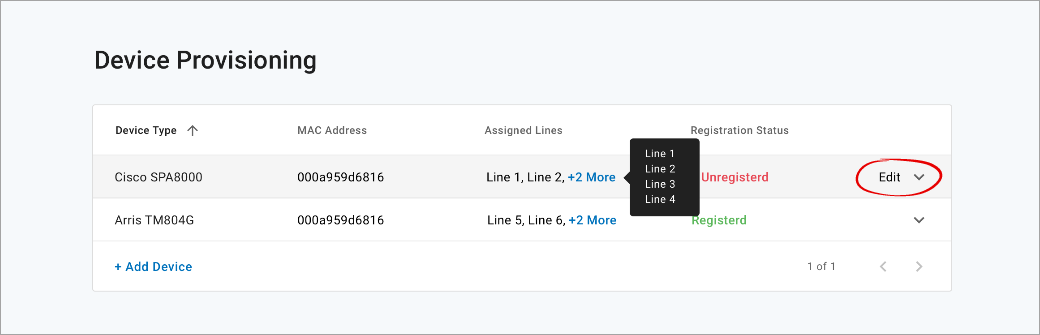
Unregistered
If the device or a port on the device is not registering, make sure it’s plugged in and the MAC address is correct. If you need any help, contact Alianza Support.
Swap Device
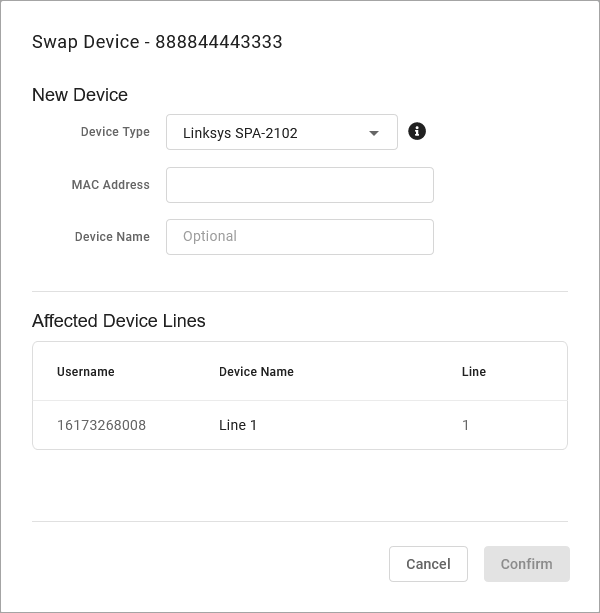
Need to swap your current device for another? Click and enter the information for your new device. The Device Type menu is filtered to list only those devices on your partition that can support the number of lines assigned to the current device.
Once you’ve select a new device type and entered the MAC address, click to save.
SIP Credentials & Fax Settings
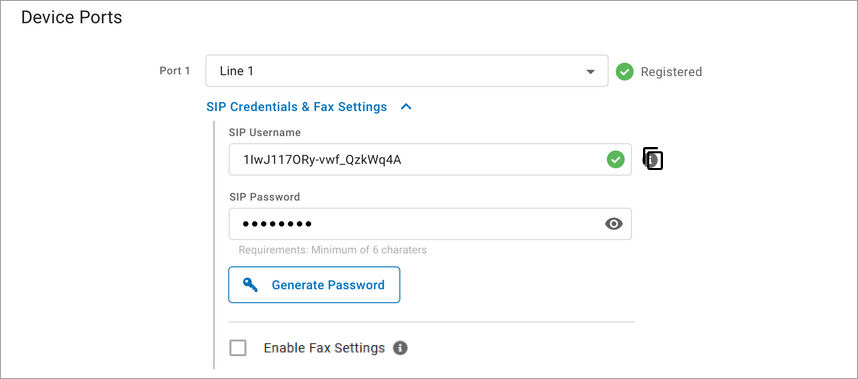
SIP Credentials are the username and password which are used by a business line to register the device with the system in order to make or take calls. Click to expand and manage those settings.
Field | Description |
|---|---|
SIP Username | Should you choose to change the SIP username, note that it must be globally unique and between 8 and 36 characters long. To copy the username, click the |
SIP Password | Enter a password or click to let the system create one for you. |
Fax Settings | Recommended for dedicated fax lines. When enabled, the device port configuration will be optimized for data transmissions. Fax settings will only apply to ATAs provisioned by Alianza and our third-party provisioning partners. Fax settings will disable the device logic that makes voice sound better, like echo cancellation, so fax transmissions are as clean as possible. Voice quality will be negatively affected. |

SIP Password Strength
For added device security, the default SIP password length has been increased from 8 to 16 characters on all partitions created after November 4, 2023. To increase the default SIP password length for an existing partition, please contact your Customer Success Manager.
Remove Device
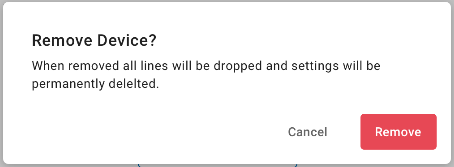
If you don’t need the device anymore, it can be removed from the account. At the bottom of the device settings, click .
When a device is removed, it’s provisioning settings are permanently deleted. Any associated lines will need to be assigned to another device in order to take calls. If you agree, click . Otherwise, click .