Phone Numbers
In Phone Numbers, you can see and manage all the numbers on the account, including their routing destinations and caller ID. If you don’t see Phone Numbers in the menu, please contact Customer Support.
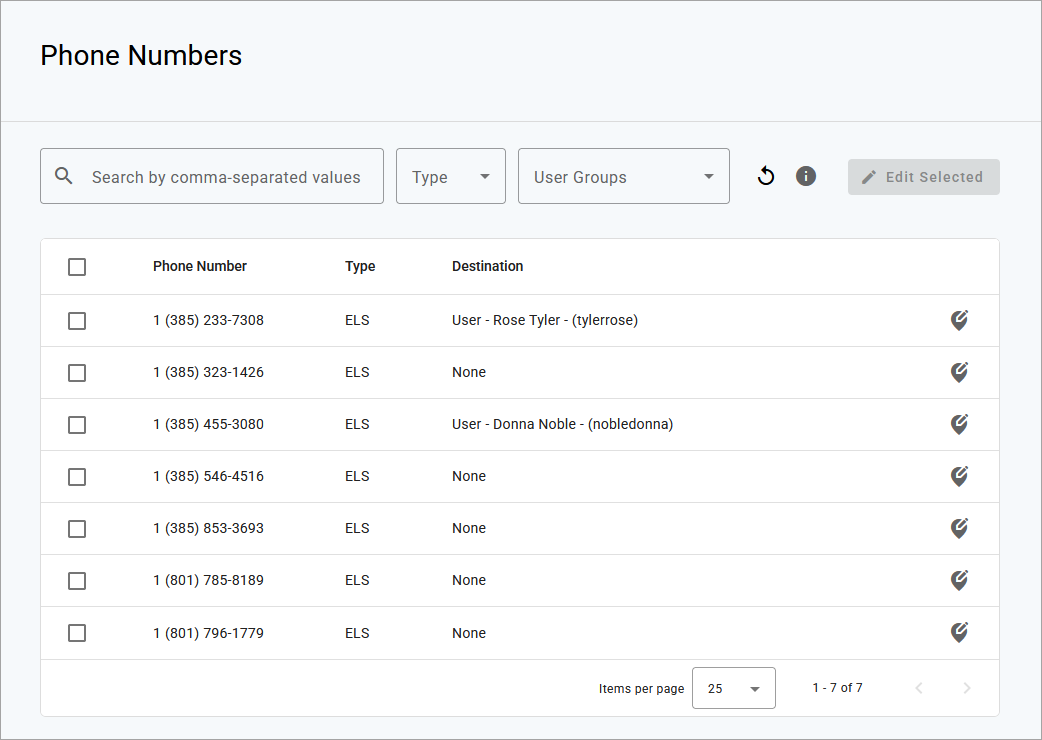
Phone Numbers Table
The table here lists all the phone numbers on the account. If you're looking for a particular number, use the search filters above the table to narrow the list.
Search Filters

Search. Filter the list by all or part of a phone number, destination (including none), or address (including the city, state, and postal code) associated with the customer service record or E911 record. Up to 10 values, separated by commas, can be added into the search field.
Type. Filter the table by the customer service record type: Company or Individual.
User Groups. Select a user group to display only phone numbers assigned to users in that group. This option will only appear if there is at least one user group on the account.
Phone Numbers List
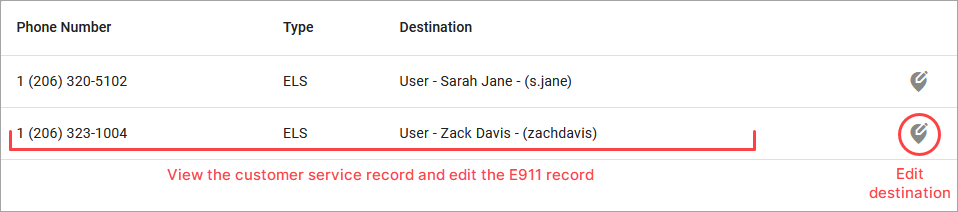
Phone Number. Lists the phone number(s) connected to the account. Select a phone number to view the customer service record and edit the E911 record.
Type. Indicates if the phone number is a standard "ELS" (Enhanced Local Service), "toll-free", or "temporary" number.
Destination. Identifies where the phone number rings to: Auto-Attendant, Hunt Group, Queue, User, Virtual Fax, or None. To change the destination, click the
 map icon on the right.
Note
To add a new phone number to the account, please contact Customer Support.
Bulk Phone Number Management
In larger deployments, it's common for multiple numbers to be assigned to the same destination. Use the Phone Numbers table to search for and manage multiple numbers at once.
Use the search filters to identify the phone numbers to be managed:

Select the checkbox in the header to select all numbers in the table or select the checkbox for each number individually.
Select
 [Edit Selected].
In the new window, fill out the following:
Filter by user group: Select a group to narrow the Phone Number Rings To options below to only those users (optional), or leave it blank to show all possible destinations.
Phone number rings to: Select a new destination. Supported destinations include auto-attendants, hunt groups, queues, users, and virtual faxes.
Priority ring: Select a priority ring tone (optional). For more details, see Priority Ring.
Select [Save].
The following information applies to end users who are managing their own accounts. For Admin users, see Manage E911 Address.
The E911 Address registered to your phone number will tell emergency services your precise location in the event you dial 911. It's important to keep this address up to date so they go to the correct location. Rather than calling Customer Support to update it on your behalf, you can update it yourself.
Log in to the portal.
Scroll down to the E911 Address section and click the pencil icon on the right.
Uncheck Same as CSR.
Make any necessary updates to the E911 Record fields to identify the precise location where your device is located. If any additional information is required (such as a suite, apartment, building, etc.), expand Manual Entry for those fields.
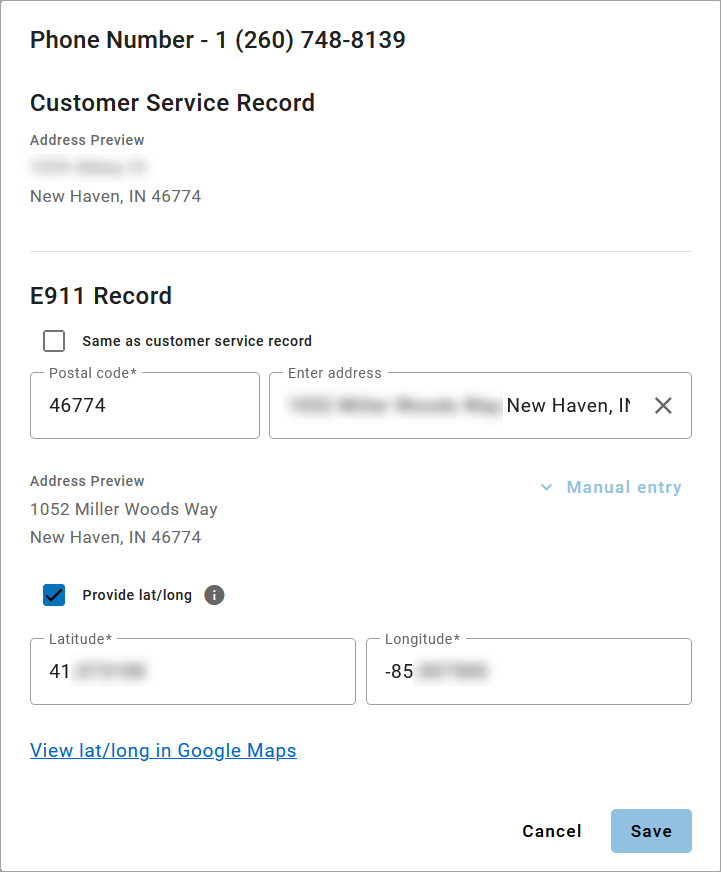
Provide lat/long is optional. Check this box to view and/or modify the latitude and longitude coordinates for the E911 address. These coordinates determine the PSAP responsible for receiving the 911 call, not the ambulance dispatch location. This additional information is useful for new addresses that haven't yet been registered with the Master Street Address Guide (MSAG).
When checked, Lat/Long is automatically generated using the provided address. Click View Lat/Long in Google Maps to see the approximate location and make sure it's at least in your neighborhood.
When you’re done, click [Save]. It may take several hours for the changes to take effect.
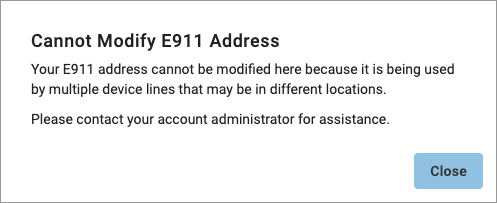
Error: Cannot Modify E911 Address
To make sure emergency services can be dispatched to the correct address, an E911 address that is assigned to multiple numbers cannot be modified by a single user from the Voice Portal. For example, a business may use the same office location for all of their lines. If an employee begins to work from home and wants to change their E911 address, that change would inadvertently affect all other lines.
If you get this error, please contact an account administrator to change your E911 address without affecting other lines.
 |