Manage E911 Address
Only Super Admins and Advanced Admins can update E911 addresses for other users. To update your own E911 address, see Update Your E911 Address.
An E911 address allows emergency services to determine the location of the caller when a call to 911 is placed. The registered address must be the physical address where the device is located and include any additional information (such as a suite, apartment, building, etc.) necessary to identify the caller's location.
Follow these steps to view and/or update an E911 record.
Go to the page.
Locate the number to be updated, then click the phone number to open the record.
Review the CSR. The customer service record (CSR) includes the person’s or company’s name, postal code, and street address. This information is entered when the phone number is added to the account and can only be changed by the service provider.

Review the E911 Record. If the E911 address is the same as the CSR, check the Same as customer service record box. If not, uncheck the box and enter the correct information in the fields below.
If the address does not appear as you're typing, use the Manual entry option below and fill in all applicable fields.
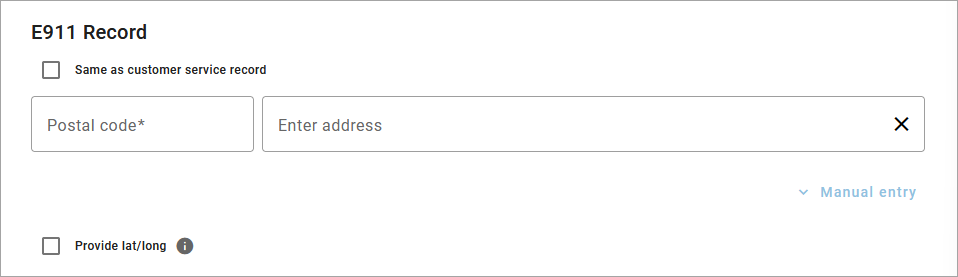
Field
Description
Postal code
The postal code of the address.
Enter address
The address associated with the phone number. Start typing an address and options will populate below. Select the correct address.
Manual entry
Enter the address manually. These fields automatically populate with the existing information and are optional unless otherwise indicated. If the address is for a multi-unit building, you can add the Unit Type and Unit Number here.
Provide lat/long
Check this box to view and/or modify the latitude and longitude coordinates for the E911 address. These coordinates determine the PSAP responsible for receiving the 911 call, not the ambulance dispatch location. This additional information is useful for new addresses that haven't yet been registered with the Master Street Address Guide (MSAG).
When checked, the coordinates are automatically generated using the provided address. Click to see the approximate location. If you have more exact coordinates, enter them here and click [Save].
When you're done, click [Save]. It may take several hours for the changes to take effect.
Cannot Edit?
If any of your account information is NOT correct and you cannot edit your E911 record, please contact Customer Service right away to get it updated.