Language Setting
Experience the voice platform in English, Canadian French, or Spanish, seamlessly integrated across audio prompts, system-generated emails, and more.
All users can change the language for their current session from the menu in the top right corner of the screen. Additionally, Admin end users can also set a default language for the account and each SIP trunk.
Change Session Language
Follow the steps below to change the language used in the web portal for your active session:
Log in to the Voice Portal.
In the top right corner of the page, expand the menu with your name and select .
Choose a language: English, French, or Spanish.
Click . The portal will refresh to update with the selected language.
The portal will revert to your default language once you log out.
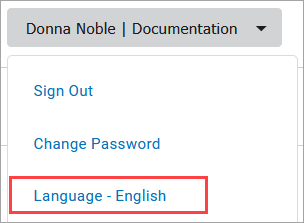 | 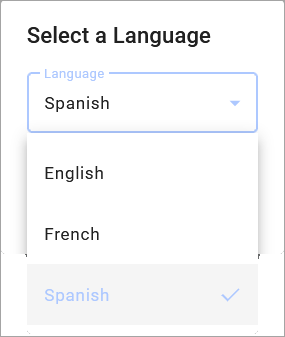 | 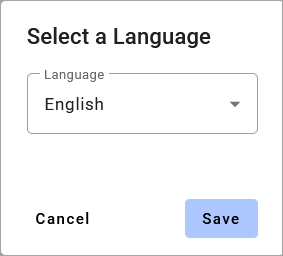 |
Change Default Language
A language can be set in the following locations:
Account. The language setting assigned to the account applies to all users by default.
Account Managers. The user's language setting applies to the web portal, IP phone (if the phone supports the language), telephone user interface (TUI) audio prompts, and system-generated emails. It does not affect the user's voicemail box, which is configured separately.
SIP Trunk. The language setting on a SIP trunk applies to the telephone user interface (TUI) audio prompts. It does not affect the language used in the portal. See Legacy SIP Trunks or Next-Gen SIP Trunks.
Customer Support
If you don't have access to these settings, please contact Customer Support for assistance.