Intercom
Intercom allows users to establish two-way communication between devices without requiring the recipient to manually answer the call. Intercoms are typically used in scenarios where immediate and hands-free communication is desired, such as door entry systems and office to classroom interactions.
There are two types of intercom feature keys:
Intercom dials one user and one device. Use this feature key to reach a specific user or location every time.
Dial Intercom asks for the user's extension to place the call. Use this feature key to reach any user on the account as long as you know their extension.
Intercom Feature Key
The intercom feature key can be configured to dial only one user and one device, which is typically a line on another user’s phone. However, it could also be a dedicated doorphone or speaker device, such as those from Algo, to increase the reach of audio alerts and notifications in larger spaces where two-way communication is useful.
|
|
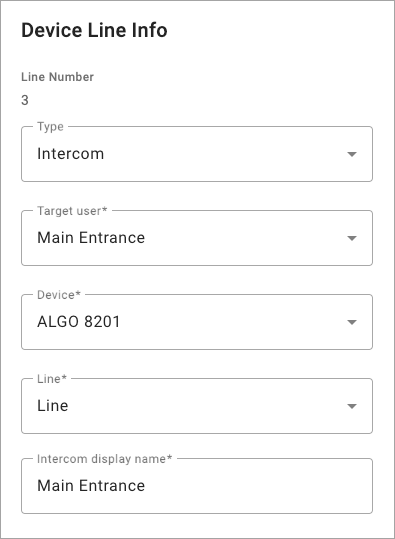
Use the Intercom Feature Key
Press the line key assigned to dial the target user’s device.
The target user’s device beeps twice before automatically answering the call on speakerphone.
If the target user is on an active call, the call follows their Call Waiting settings.
If the target user has Do Not Disturb enabled, the caller is routed to voicemail or hears a busy tone.
When the call is finished, either party can end the call.
Dial Intercom Feature Key
The Dial Intercom feature key is used to place an intercom call to a user's extension. The user's device will beep twice before automatically answering on speakerphone. If the user has multiple devices, the first to accept the auto-answer call will take it.
This feature can also be accessed via star code.
|
|
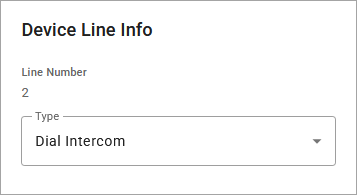
Use the Dial Intercom Feature Key
Press the line key assigned to place an intercom call.
You will hear, "Please enter the user's extension followed by the pound sign."
Enter the target user's extension followed by #.
The target user’s device beeps twice before automatically answering the call on speakerphone.
If the target user is on an active call, the call follows their Call Waiting settings.
If the target user has Do Not Disturb enabled, the caller is routed to voicemail or hears a busy tone.
When the call is finished, either party can end the call.
Unsupported Devices
If the target user’s device does not support auto-answer, the call will ring on that device like a standard phone call. In addition, the feature may not function as expected when multiple devices are assigned to the user.