Priority Ring
Priority Ring causes the customer's device to ring in a different pattern based on the caller ID of the inbound caller or based on the phone number called. There are two ways to enable Priority Ring in the portal:
Phone Number: A user’s device(s) will ring differently when the incoming call is placed to a particular phone number. This is also called Distinctive Ring.
User Call Handling: A user’s device(s) will ring differently when the caller ID matches a pattern, such as calls from anonymous callers, toll-free callers, or calls from a particular phone number. Priority Ring is enabled in the user’s Call Screening settings.
Both methods use the same mechanism for causing a different ring. Technically, a SIP header contains a value that tells the configured device to ring a certain way. Basically, the inbound call will have information telling the user's device to ring differently.
Warning
Every device will have different ring patterns based on the manufacturer.
Enable on Phone Number
In the portal, go to .
Locate the phone number and click the
 destination icon on the right.
From the menu, select a ring type.
Click . All calls to that phone number will now ring user devices accordingly.
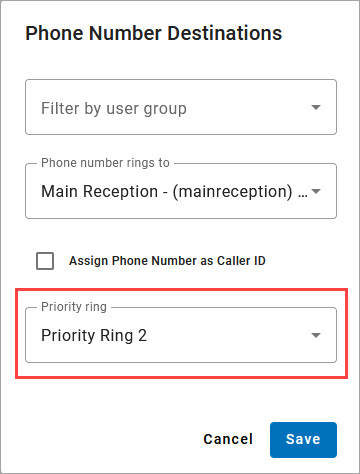 |
Enable on User
Priority ring options are available for any of the call screening categories: Anonymous Callers, Toll-free Callers, All Other Callers, or Custom Callers.
In the Admin Portal, go to Users and select the user.
In the Calls tab, scroll down to Call Screening.
For any of the call screening categories, choose Allow with Priority Ring.
In the Priority Ring menu now displayed below, select a ring type.
Click [Save]. Calls matching the call screening method will now ring the user’s device(s) accordingly.
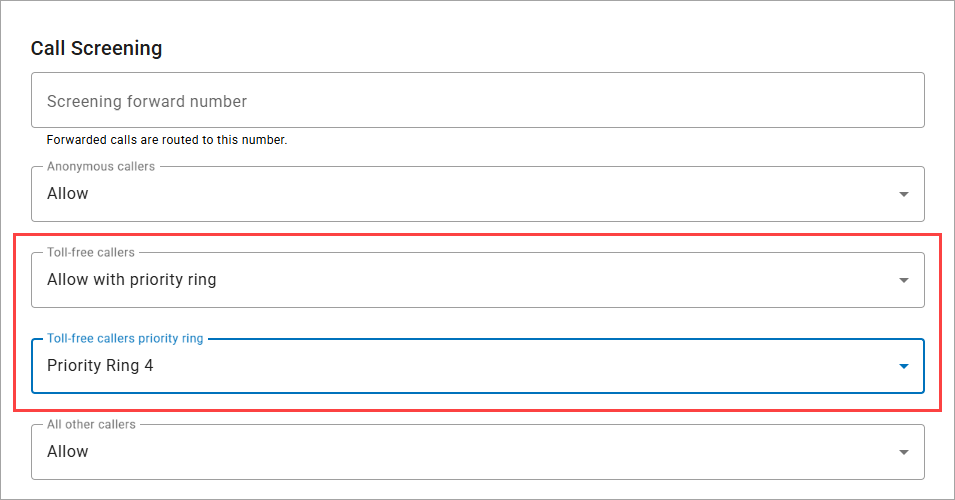
Custom Callers
To set a Priority Ring for individual inbound callers, click [Add Rule].
Enter the caller's phone number (including a "1" at the beginning).
Select Allow with Priority Ring, and then choose the Priority Ring type.
Click [Save]. Calls matching the call screening method will now ring the user’s device(s) accordingly.
